
Close Menu
digitalsplacesdigitalsplaces
  • Home
  • Technology
  • Mobiles
  • Computers
  • Electronics
  • Information
  • Contact Us
Facebook X (Twitter) Instagram
Sunday, July 26
Trending
  • Why Hotels Need a Professionally Managed Background Music Strategy
  • Tips for Keeping Your ie777 login Secure Every Day
  • Running Continuous Trading Terminals on High-Performance Virtual Desktops
  • Optimizing Application Routing Through High Performance Midwest Data Nodes
  • What New Users Can Expect from qq2 game
  • Social Media Video Creation Made Easier with AI
  • Juwa777 Online Casino – Best Slot Games to Play
  • Xbox Game Pass Core Expands Everyday Gaming Possibilities
digitalsplacesdigitalsplaces
  • Home
  • Technology
  • Mobiles
  • Computers
  • Electronics
  • Information
  • Contact Us
digitalsplacesdigitalsplaces
Home » Google Lens: Search information on the Internet from images, not text; use it like this on a PC and Smartphone
Technology

Google Lens: Search information on the Internet from images, not text; use it like this on a PC and Smartphone

GeniaBy GeniaMarch 4, 2024No Comments2 Mins Read
Google Lens: Search information on the Internet from images, not text; use it like this on a PC and Smartphone

You can scan a product’s barcode and compare its price and availability from different sellers. Google Lens is a revolutionary technology that lets you search for information from images instead of typing text. It can identify objects, places, and text using your phone or computer’s camera and provide you with information about them.

This article will give you information about Google Lens, including how it works, how to use it, and some valuable features.

Table of Contents

Toggle
  • How does Google Lens work?
  • How to use Google Lens?
    • On smartphone:
    • On PC:
  • Some valuable features of Google Lens:
  • Some examples of the use of Google Lens:
  • Conclusion:

How does Google Lens work?

Google Lens understands images using machine learning and artificial intelligence (AI). It uses its database to identify objects, places, and text in images.
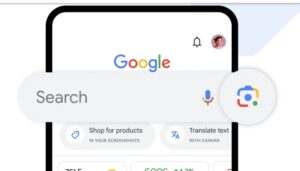
Google Lens

How to use Google Lens?

You can use Google Lens on your phone or computer:

On smartphone:

Download the Google Lens app.

Open the app and point your camera at the object, place, or text you want information about.

Google Lens will scan the image and provide you with information about it.

On PC:

Open the Google Chrome browser.

Type “lens.google.com” in the URL bar.

Click the “Upload” button to upload your picture.

Google Lens will scan the image and provide you with information about it.

Google Lens

Some valuable features of Google Lens:

Text translation: You can use Google Lens to translate text from any language into your language.

Product information: You can use Google Lens to get information about a product, such as price, reviews, and availability.

Places information: You can use Google Lens to get information about a place, such as its address, directions, and reviews.

Identifying plants and animals: You can use Google Lens to identify a plant or animal.

Scanning QR codes: You can use Google Lens to scan QR codes and get related information.

Some examples of the use of Google Lens:

You can scan a restaurant’s menu and get information about it, such as prices and reviews of its dishes and scan a historic building and get information about it, such as its history and architecture. You can scan a product’s barcode and compare its price and availability from different sellers and text in any language and translate it into your language.

Conclusion:

Google Lens is a powerful tool that gives you a new way to find information online. It lets you search for information from images instead of typing text. Google Lens can be used for various tasks, such as finding product information, identifying locations, and translating text.

Google Lens search for information from images

Related Posts

Running Continuous Trading Terminals on High-Performance Virtual Desktops

July 22, 2026

Optimizing Application Routing Through High Performance Midwest Data Nodes

July 22, 2026

Juwa777 Online Casino – Best Slot Games to Play

June 7, 2026

Comments are closed.

Latest Post

Running Continuous Trading Terminals on High-Performance Virtual Desktops

July 22, 2026

Optimizing Application Routing Through High Performance Midwest Data Nodes

July 22, 2026

Juwa777 Online Casino – Best Slot Games to Play

June 7, 2026

Xbox Game Pass Core Expands Everyday Gaming Possibilities

June 4, 2026

Key Components of a Strong Network Infrastructure for Businesses

March 23, 2026
Top Post

Why Hotels Need a Professionally Managed Background Music Strategy

July 22, 2026

Tips for Keeping Your ie777 login Secure Every Day

July 22, 2026

Running Continuous Trading Terminals on High-Performance Virtual Desktops

July 22, 2026
Facebook X (Twitter) Instagram Pinterest YouTube LinkedIn
Copyright © 2024. All Rights Reserved By Digital Splaces

Type above and press Enter to search. Press Esc to cancel.