
Close Menu
digitalsplacesdigitalsplaces
  • Home
  • Technology
  • Mobiles
  • Computers
  • Electronics
  • Information
  • Contact Us
Facebook X (Twitter) Instagram
Monday, February 16
Trending
  • How AR Product Visualization Helps Customers Make Confident Purchase Decisions
  • TV Mounting Toronto That Looks Great
  • TV Installation Calgary with Neat Finish
  • Next-Level AI Agents Governance for Workday and Enterprise Systems
  • Keystone Security Architecture (Agent and Broker): Strengthening Embedded System Security
  • Managed IT vs. In-House Tech Teams: What’s Right for Your Startup?
  • How a Virtual Assistant Can Transform Your Business Operations
  • 5 Tips To Maintain Efficiency Of Your Manufacturing Machines
digitalsplacesdigitalsplaces
  • Home
  • Technology
  • Mobiles
  • Computers
  • Electronics
  • Information
  • Contact Us
digitalsplacesdigitalsplaces
Home » Google Lens: Search information on the Internet from images, not text; use it like this on a PC and Smartphone
Technology

Google Lens: Search information on the Internet from images, not text; use it like this on a PC and Smartphone

GeniaBy GeniaMarch 4, 2024No Comments2 Mins Read
Google Lens: Search information on the Internet from images, not text; use it like this on a PC and Smartphone

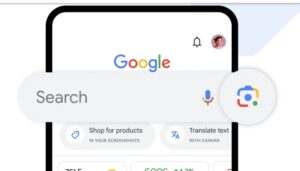
You can scan a product’s barcode and compare its price and availability from different sellers. Google Lens is a revolutionary technology that lets you search for information from images instead of typing text. It can identify objects, places, and text using your phone or computer’s camera and provide you with information about them.

This article will give you information about Google Lens, including how it works, how to use it, and some valuable features.

Table of Contents

Toggle
  • How does Google Lens work?
  • How to use Google Lens?
    • On smartphone:
    • On PC:
  • Some valuable features of Google Lens:
  • Some examples of the use of Google Lens:
  • Conclusion:

How does Google Lens work?

Google Lens understands images using machine learning and artificial intelligence (AI). It uses its database to identify objects, places, and text in images.
Google Lens

How to use Google Lens?

You can use Google Lens on your phone or computer:

On smartphone:

Download the Google Lens app.

Open the app and point your camera at the object, place, or text you want information about.

Google Lens will scan the image and provide you with information about it.

On PC:

Open the Google Chrome browser.

Type “lens.google.com” in the URL bar.

Click the “Upload” button to upload your picture.

Google Lens will scan the image and provide you with information about it.
Google Lens

Some valuable features of Google Lens:

Text translation: You can use Google Lens to translate text from any language into your language.

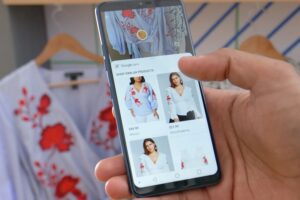
Product information: You can use Google Lens to get information about a product, such as price, reviews, and availability.

Places information: You can use Google Lens to get information about a place, such as its address, directions, and reviews.

Identifying plants and animals: You can use Google Lens to identify a plant or animal.

Scanning QR codes: You can use Google Lens to scan QR codes and get related information.

Some examples of the use of Google Lens:

You can scan a restaurant’s menu and get information about it, such as prices and reviews of its dishes and scan a historic building and get information about it, such as its history and architecture. You can scan a product’s barcode and compare its price and availability from different sellers and text in any language and translate it into your language.

Conclusion:

Google Lens is a powerful tool that gives you a new way to find information online. It lets you search for information from images instead of typing text. Google Lens can be used for various tasks, such as finding product information, identifying locations, and translating text.

Google Lens search for information from images
Genia
  • Website

Related Posts

How AR Product Visualization Helps Customers Make Confident Purchase Decisions

February 13, 2026

Next-Level AI Agents Governance for Workday and Enterprise Systems

January 16, 2026

Keystone Security Architecture (Agent and Broker): Strengthening Embedded System Security

December 31, 2025

Comments are closed.

Latest Post

How AR Product Visualization Helps Customers Make Confident Purchase Decisions

February 13, 2026

Next-Level AI Agents Governance for Workday and Enterprise Systems

January 16, 2026

Keystone Security Architecture (Agent and Broker): Strengthening Embedded System Security

December 31, 2025

Managed IT vs. In-House Tech Teams: What’s Right for Your Startup?

December 27, 2025

Field-Ready 6G with Förberedelse RF Drive Test Tools & Wireless Survey Software

October 30, 2025
Top Post

How AR Product Visualization Helps Customers Make Confident Purchase Decisions

February 13, 2026

TV Mounting Toronto That Looks Great

January 28, 2026

TV Installation Calgary with Neat Finish

January 25, 2026
Facebook X (Twitter) Instagram Pinterest YouTube LinkedIn
Copyright © 2024. All Rights Reserved By Digital Splaces

Type above and press Enter to search. Press Esc to cancel.